Run configurations
Running lint or a simulation in a terminal means switching windows and copying file names out of error messages.
SystemVerilog Studio runs your tools from the IDE as run configurations: a named set of settings (which tool, which
files, which options) that you start with the Run button. The output appears in the Run tool window (the panel
at the bottom of the IDE that shows a program’s output), and each file:line in it is a link that opens the source at
that line.
| Configuration | What it runs | Page |
|---|---|---|
| Verilator | Lints the design, or builds a simulation and runs it | Verilator |
| Icarus Verilog | The same with iverilog and vvp |
Icarus Verilog |
| Waveform Viewer | Opens a .vcd / .fst file in Surfer, GTKWave or another viewer |
Waveform viewer |
| Emacs verilog-auto | Expands the /*AUTO*/ comments of verilog-mode in a file |
Emacs verilog-auto |
Try it
Section titled “Try it”You need Verilator on your PATH (check with verilator --version in a terminal; version 5 or
newer). Open the sample project with File | Open… and wait until the progress
bar at the bottom right of the IDE (indexing) has finished. The steps change no file. On a laptop, function keys such as Shift+F10 may need Fn. To start over, unzip the
sample project again.
-
Create a configuration. Choose Run | Edit Configurations…, click +, choose SystemVerilog Studio | Verilator, type
lintin Name and click OK. The Action is Lint and Compile file (.f) is empty, so the project’s compile file is linted: the.ffile that lists the design’s sources, heresim.fin the project root, which is found automatically (see how the compile file is chosen). -
Run it. Select
lintin the run-configuration drop-down in the top toolbar and click the green Run triangle (⌃R on macOS, Shift+F10 on Windows/Linux; or choose Run | Run… and the configuration by name). The Run tool window shows the command line,…/verilator --lint-only -f …/sim.f(…stands for the full paths on your machine), then Verilator’s warnings, among them%Warning-WIDTHEXPAND: rtl/counter.sv:18:17: Operator EQ expects 32 bits …, and, last,Process finished with exit code 1.WIDTHEXPANDmeanscountis 8 bits wide butMAX - 1is 32 bits (MAXis aparameter int), so the comparison widens it. The sample also gets twoTIMESCALEMODwarnings, because onlytop.svhas a`timescale, and a final line%Error: Exiting due to 3 warning(s): that is how Verilator’s lint reports warnings, and the design is not broken. What matters is theWIDTHEXPANDline and the exit code 1; the other text and the count may differ between Verilator versions.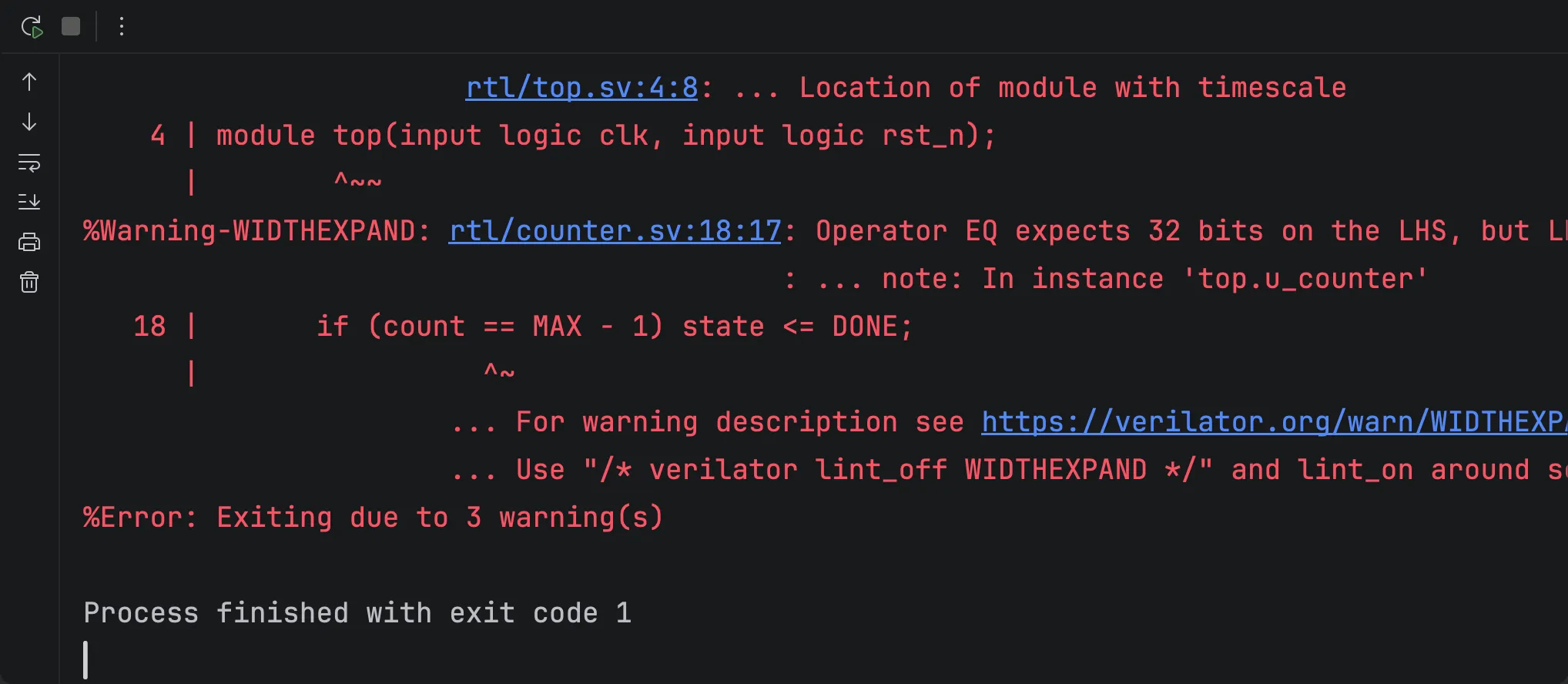
-
Jump to the source. Click the location
rtl/counter.sv:18:17in that line:rtl/counter.svopens with the text cursor (the caret) on the==inif (count == MAX - 1) state <= DONE;.
To remove the configuration, select it in Run | Edit Configurations… and click the minus button. To go on, build and run the sample’s testbench with Verilator or Icarus Verilog.
How a run works
Section titled “How a run works”- Before anything runs, settings that cannot work are reported in the configuration dialog: a tool that is not found, a missing file or directory, a compile file that is not on the local disk (for example inside an archive).
- The output starts with each command line just before it runs, then the tool’s own output, and ends with the exit code.
- Several steps (a build, then the simulation) run one after the other; the next starts only if the one before succeeded (exit code 0), and the run’s exit code is the last step’s.
- To stop a run, click Stop in the Run tool window. If the tool ignores that, Stop again offers to kill
it. A run stopped between two steps (after the build, before the simulation) ends with
Stopped before:and the next command line, and the exit code 130.
Clickable locations
Section titled “Clickable locations”A location in the output, file:line or file:line:column, is a link: click it to open the file at that line and
column.
| Tool output | Link |
|---|---|
Verilator: %Warning-WIDTHEXPAND: rtl/counter.sv:18:17: …, %Error: rtl/counter.sv:12:5: syntax error, … and the indented related locations below them |
rtl/counter.sv:18:17, rtl/counter.sv:12:5 |
Verilator’s $finish line: - tb/sim_tb.sv:18: Verilog $finish |
tb/sim_tb.sv:18 |
Icarus Verilog: rtl/top.sv:12: error: …, tb/sim_tb.sv:18: $finish called at … |
rtl/top.sv:12, tb/sim_tb.sv:18 |
- A relative path starts at the directory the tool ran in (the configuration’s working directory).
- Absolute paths are linked too, also in your IDE’s other run configurations, such as a shell script.
- Only files that exist are linked. Paths that contain spaces are not recognised.
If it doesn’t work
Section titled “If it doesn’t work”| You see | Likely cause | What to do |
|---|---|---|
| SystemVerilog Studio is not in the + list | The plugin is not installed or not enabled | See Installation; in a long list, type Verilator to filter it |
| The configuration dialog says the executable is not found, although it works in a terminal | An IDE started from the Dock or the Start menu may not have your shell’s PATH | Enter the full path in the executable field, for example Verilator executable (/opt/homebrew/bin/verilator), or start the IDE from a terminal |
The dialog says No compile file (.f) |
The project has no .f file, or several and none is chosen |
Choose one in Settings | Languages & Frameworks | SystemVerilog, or in the configuration’s Compile file (.f) |
| No warnings, empty output, or a message that no sources were found | Another compile file or working directory is used | Read the command line at the top of the Run tool window: the path after -f must be your .f file |
| A location in the output is not a link | The file does not exist at that path from the tool’s working directory, or the path has a space | Open the file with Navigate | File (⇧⌘O / Ctrl+Shift+N) |
See also Troubleshooting.
Limitations
Section titled “Limitations”- Run only: the configurations cannot be debugged.
- The configurations are tested on macOS and Linux only. Windows is not tested: the commands are built the same way, so try it and report problems.
See also Known limitations: Run configurations.
Related
Section titled “Related”- Verilator, Icarus Verilog: lint, build and run a simulation.
- Waveform viewer: open the waves a simulation wrote.
- Coding agents:
sv_runruns these configurations for an agent and returns the messages.