Verilator
Verilator is a fast, free SystemVerilog simulator that compiles the design into a C++
program. It is also a strict linter: it reports width mismatches and other suspicious code that a simulation would
silently accept. A Verilator run configuration (a named set of settings you start with the Run button; see
Run configurations) does one of three things with your design: Lint it, Build
the simulation, or Build and run it. Its messages appear in the Run tool window at the bottom of the IDE, with
each file:line as a link to the source.
Try it
Section titled “Try it”You need Verilator 5 or newer on your PATH (check with verilator --version in a terminal), and a C++ compiler and
make, which Verilator uses to build (check with c++ --version and make --version; on macOS they come with
xcode-select --install, on Debian or Ubuntu with sudo apt install build-essential). Open the sample project with
File | Open… and wait until the progress bar at the bottom right of the IDE (indexing) has finished. The
Run configurations page shows the lint; here you build and run the sample’s
testbench, tb/sim_tb.sv. It clocks and resets the design’s top module top, waits until the counter inside is done,
prints a PASS line and records the waves. The steps change no source file; the run writes a build folder and a
waveform file into the project folder. On a laptop, function keys such as Shift+F10 may need Fn. To start over, unzip the
sample project again.
-
Create a configuration. Choose Run | Edit Configurations…, click + and choose SystemVerilog Studio | Verilator. Name it
sim_tb, then set:- Action: Build and run.
- Top module:
sim_tb, the testbench, which instantiatestop. - Verilator options:
--trace -Wno-fatal tb/sim_tb.sv. The testbench is not in the compile filesim.f, which lists only the design, so you add it here;--tracerecords the waves the testbench asks for with$dumpfile, and-Wno-fatallets the build go on past the sample’s warnings (see step 2).
Leave Compile file (.f) empty (the project’s
sim.f) and click OK.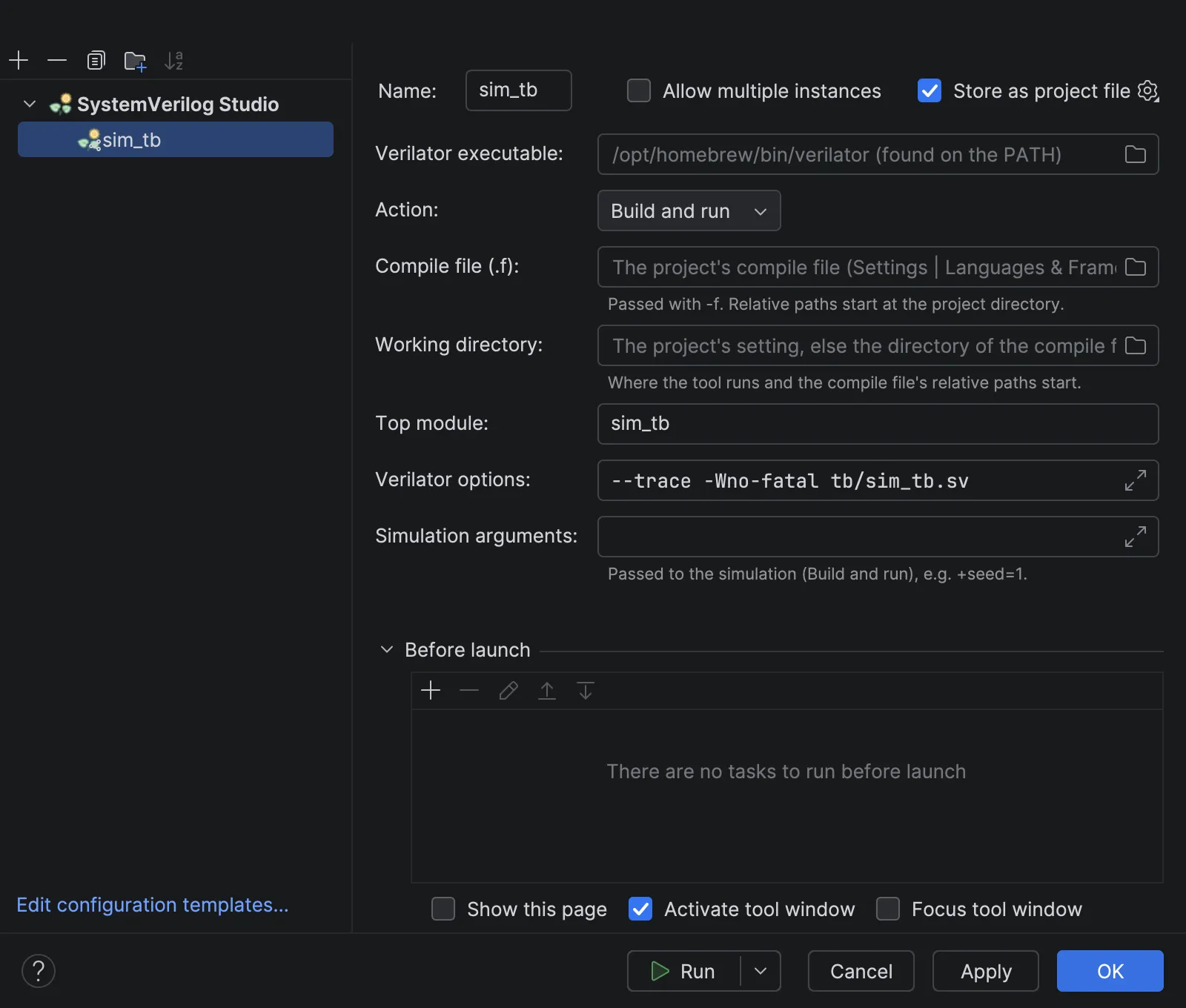
-
Run it. Select
sim_tbin the run-configuration drop-down in the top toolbar and click the green Run triangle (⌃R on macOS, Shift+F10 on Windows/Linux). The Run tool window shows the build’s command line,…/verilator --binary -j 0 -o Vsim --top-module sim_tb -f …/sim.f --trace -Wno-fatal tb/sim_tb.sv(…stands for the full paths on your machine), then Verilator’s warnings: two%Warning-TIMESCALEMOD(onlytop.svand the testbench have a`timescale) and%Warning-WIDTHEXPAND: rtl/counter.sv:18:17: …(an 8-bitcountcompared with a 32-bit value). They do not stop the build, because of-Wno-fatal; their wording may differ between Verilator versions. Then comes the C++ build, which can take a minute the first time. -
Read the result. When the build is done, the simulation runs: its command line ends with
obj_dir/Vsim, and it prints0andRTL simulation(both fromtop: the0isg_lane[0].busy, a signal the sample never assigns, which Verilator shows as 0: it is a two-state simulator, with noxvalue), thenPASS: the counter is done at 225000(the time in picoseconds), then- tb/sim_tb.sv:18: Verilog $finishand Verilator’s simulation report. The last line isProcess finished with exit code 0.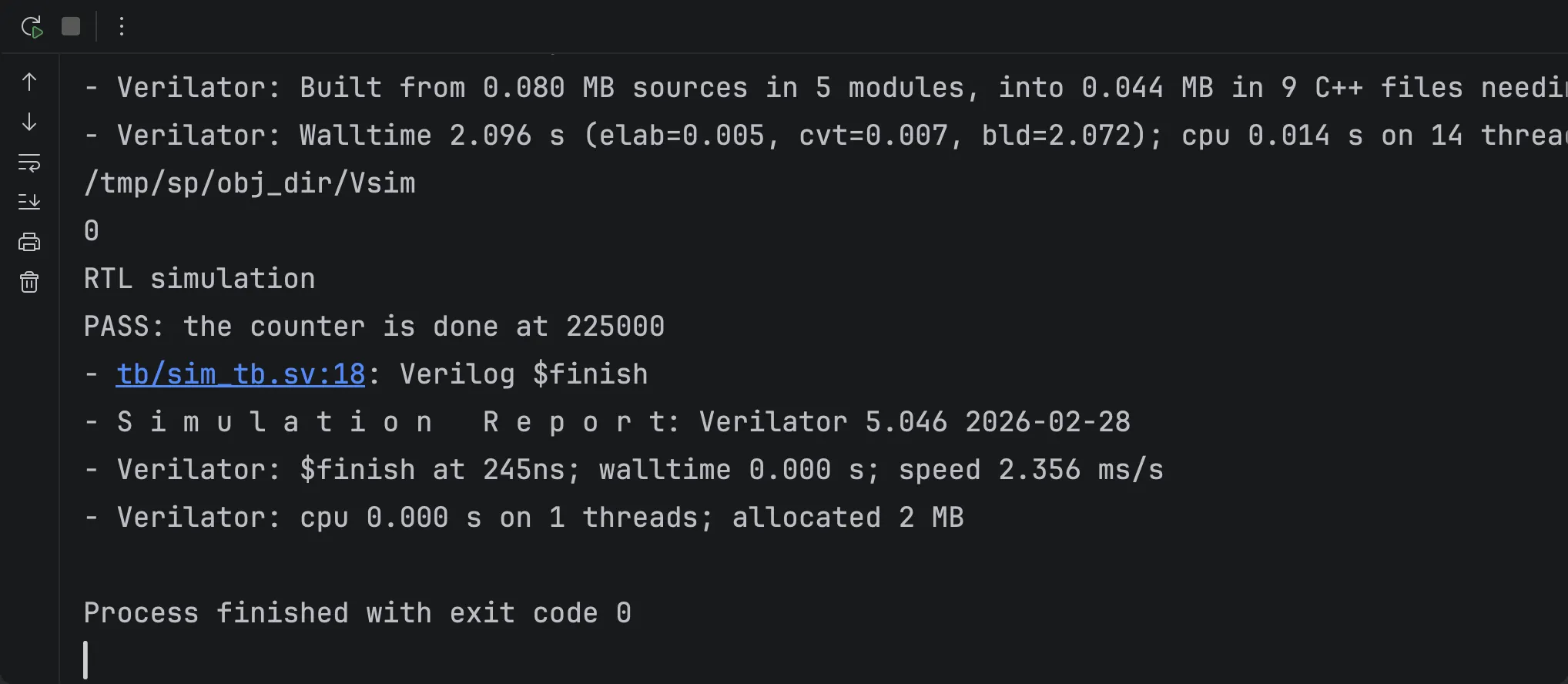
-
Jump to the testbench. Click
tb/sim_tb.sv:18in the$finishline:tb/sim_tb.svopens at the line#20 $finish;(the testbench stops 20 ns after the PASS line, so the waves show the end). -
Find the waves. The project folder now has
sim_tb.vcd, the recorded waves, and the build folderobj_dir/. Open the waves with the Waveform viewer (if you go on to that page, keepsim_tb.vcdfor now). When you are done, deleteobj_dirandsim_tb.vcd(right-click them in the Project tool window, Delete; if they do not show yet, choose File | Reload All from Disk), and remove the configuration: select it in Run | Edit Configurations… and click the minus button.
How it works
Section titled “How it works”The configuration runs Verilator on a compile file: a .f file with the list of sources and the +incdir+ and
+define+ options you would also give Verilator on the command line, passed with -f. With Compile file (.f)
empty, it is the project’s compile file, as chosen in Settings | Languages & Frameworks | SystemVerilog (see
Conditional compilation).
Each action runs Verilator in the working directory with these arguments, in this order: the action’s own options;
the Extra defines of the SystemVerilog settings
(Conditional compilation) as
-DNAME[=value]; Top module as --top-module; -f and the compile file; then your
Verilator options. Step 2’s command line is an example.
| Action | Runs |
|---|---|
| Lint | verilator --lint-only [-D…] [--top-module …] -f sim.f [Options] |
| Build | verilator --binary -j 0 -o Vsim [-D…] [--top-module …] -f sim.f [Options]: the simulation obj_dir/Vsim |
| Build and run | the build, then obj_dir/Vsim with the Simulation arguments |
- Options come after the compile file, so a testbench file written there is compiled after the design. A file the design itself needs first (a package, a header of macros) belongs in the compile file.
- The simulation runs only if the build succeeds. Verilator stops a build at its warnings (lint warnings included)
unless Verilator options has
-Wno-fatal; the run then ends with%Error: Exiting due to … warning(s)and no simulation. - Build needs Verilator 5 (
--binary). Verilator builds with the C++ compiler andmakeit finds, as on the command line. - Build and run expects the simulation at
obj_dir/Vsim: do not change-oor--Mdirin Verilator options.
Settings
Section titled “Settings”Open the configuration with Run | Edit Configurations… and select it in the list on the left.
| Setting | Meaning |
|---|---|
| Verilator executable | Empty: verilator on the PATH. A path (a relative one starts at the project directory) or a name to look up on the PATH. |
| Action | Lint, Build or Build and run. |
| Compile file (.f) | Empty: the project’s compile file. The file must be on the local disk. |
| Working directory | Where Verilator runs, where the relative paths in the compile file start, and where obj_dir/ and the waves are written. Empty: the Working directory set next to the project’s compile file in the SystemVerilog settings; if that is empty too (as in the sample project), the folder that holds the .f file. |
| Top module | --top-module. Empty: Verilator finds the top. |
| Verilator options | More options for Verilator, e.g. -Wall, --trace, or a testbench file. |
| Simulation arguments | For Build and run: passed to the simulation, e.g. +seed=1. |
If it doesn’t work
Section titled “If it doesn’t work”| You see | Likely cause | What to do |
|---|---|---|
A compiler or make error after Verilator’s messages, and no simulation |
No C++ compiler or make on the PATH the IDE sees |
Install them (see Try it), or start the IDE from a terminal so that it has your shell’s PATH |
%Error: Exiting due to … warning(s) and no simulation |
Verilator stops a build at warnings | Fix the warnings, or add -Wno-fatal to Verilator options |
%Error: Specified --top-module 'sim_tb' was not found in design. |
The testbench file is not in Verilator options | Add tb/sim_tb.sv to Verilator options |
The run passes, but there is no sim_tb.vcd |
--trace is not in Verilator options |
Add --trace and run again |
Build reports an unknown option --binary |
Verilator older than 5 | Run verilator --version and upgrade |
| Build and run cannot find the simulation | -o or --Mdir was changed in Verilator options |
Remove them: the simulation is expected at obj_dir/Vsim |
The dialog says verilator is not found, although it works in a terminal |
The IDE does not have your shell’s PATH | See Run configurations: If it doesn’t work |
See also Troubleshooting.
Limitations
Section titled “Limitations”- Run only: the configurations cannot be debugged.
- Tested on macOS and Linux; Windows is untested.
More in Known limitations: Run configurations.
Related
Section titled “Related”- Run configurations: the Run tool window, clickable locations, stopping a run.
- Icarus Verilog: the same testbench with
iverilogandvvp. - Waveform viewer: open
sim_tb.vcd.